Custom Camera – Preview Callback

Warning, this is messy proof of concept code. Thanks to this: http://stackoverflow.com/questions/8350230/android-how-to-display-camera-preview-with-callback

package com.apress.proandroidmedia.ch2.snapshot;

import java.io.FileNotFoundException;
import java.io.IOException;
import java.io.OutputStream;
import java.util.Iterator;
import java.util.List;

import android.app.Activity;
import android.content.ContentValues;
import android.content.res.Configuration;
import android.graphics.Bitmap;
import android.hardware.Camera;
import android.net.Uri;
import android.os.Bundle;
import android.provider.MediaStore.Images.Media;
import android.view.SurfaceHolder;
import android.view.SurfaceView;
import android.view.View;
import android.view.View.OnClickListener;
import android.widget.ImageView;
import android.widget.Toast;

public class SnapShot extends Activity implements OnClickListener,
		SurfaceHolder.Callback, Camera.PictureCallback, Camera.PreviewCallback {

	SurfaceView cameraView;
	SurfaceHolder surfaceHolder;
	Camera camera;
	ImageView imgView;
	
	@Override
	public void onCreate(Bundle savedInstanceState) {
		super.onCreate(savedInstanceState);

		setContentView(R.layout.main);

		cameraView = (SurfaceView) this.findViewById(R.id.CameraView);
		surfaceHolder = cameraView.getHolder();
		surfaceHolder.setType(SurfaceHolder.SURFACE_TYPE_PUSH_BUFFERS);
		surfaceHolder.addCallback(this);

		cameraView.setFocusable(true);
		cameraView.setFocusableInTouchMode(true);
		cameraView.setClickable(true);

		cameraView.setOnClickListener(this);
		
		imgView = (ImageView) this.findViewById(R.id.ImageView);
	}

	public void onClick(View v) {
		//camera.takePicture(null, null, this);
		camera.setOneShotPreviewCallback(this);
	}

	public void onPictureTaken(byte[] data, Camera camera) {
		Uri imageFileUri = getContentResolver().insert(
				Media.EXTERNAL_CONTENT_URI, new ContentValues());
		try {
			OutputStream imageFileOS = getContentResolver().openOutputStream(
					imageFileUri);
			imageFileOS.write(data);
			imageFileOS.flush();
			imageFileOS.close();
		} catch (FileNotFoundException e) {
			Toast t = Toast.makeText(this, e.getMessage(), Toast.LENGTH_SHORT);
			t.show();
		} catch (IOException e) {
			Toast t = Toast.makeText(this, e.getMessage(), Toast.LENGTH_SHORT);
			t.show();
		}
		camera.startPreview();
	}

	public void surfaceChanged(SurfaceHolder holder, int format, int w, int h) {
		camera.startPreview();
	}

	public void surfaceCreated(SurfaceHolder holder) {
		camera = Camera.open();
		try {
			camera.setPreviewDisplay(holder);
			Camera.Parameters parameters = camera.getParameters();
			if (this.getResources().getConfiguration().orientation != Configuration.ORIENTATION_LANDSCAPE) {
				parameters.set("orientation", "portrait");

				// For Android Version 2.2 and above
				camera.setDisplayOrientation(90);

				// For Android Version 2.0 and above
				parameters.setRotation(90);
			}

			parameters.setExposureCompensation(parameters.getMinExposureCompensation());
			
			// Effects are for Android Version 2.0 and higher
			List colorEffects = parameters.getSupportedColorEffects();
			Iterator cei = colorEffects.iterator();
			while (cei.hasNext()) {
				String currentEffect = cei.next();
				if (currentEffect.equals(Camera.Parameters.EFFECT_SOLARIZE)) {
					parameters
							.setColorEffect(Camera.Parameters.EFFECT_SOLARIZE);
					break;
				}
			}
			// End Effects for Android Version 2.0 and higher

			camera.setParameters(parameters);
		} catch (IOException exception) {
			camera.release();
		}
	}

	public void surfaceDestroyed(SurfaceHolder holder) {
		camera.stopPreview();
		camera.release();
	}
	
	public void onPreviewFrame(byte[] data, Camera camera) {
		int height = camera.getParameters().getPreviewSize().height;
		int width = camera.getParameters().getPreviewSize().width;
		
	    int frameSize = width*height;
	    int[] rgba = new int[frameSize+1];

	    // Convert YUV to RGB
	    for (int i = 0; i < height; i++)
	        for (int j = 0; j < width; j++) {
	            int y = (0xff & ((int) data[i * width + j]));
	            int u = (0xff & ((int) data[frameSize + (i >> 1) * width + (j & ~1) + 0]));
	            int v = (0xff & ((int) data[frameSize + (i >> 1) * width + (j & ~1) + 1]));
	            y = y < 16 ? 16 : y;

	            int r = Math.round(1.164f * (y - 16) + 1.596f * (v - 128));
	            int g = Math.round(1.164f * (y - 16) - 0.813f * (v - 128) - 0.391f * (u - 128));
	            int b = Math.round(1.164f * (y - 16) + 2.018f * (u - 128));

	            r = r < 0 ? 0 : (r > 255 ? 255 : r);
	            g = g < 0 ? 0 : (g > 255 ? 255 : g);
	            b = b < 0 ? 0 : (b > 255 ? 255 : b);

	            rgba[i * width + j] = 0xff000000 + (b << 16) + (g << 8) + r;
	        }

	    Bitmap bmp = Bitmap.createBitmap(width, height, Bitmap.Config.ARGB_8888);
	    bmp.setPixels(rgba, 0/* offset */, width /* stride */, 0, 0, width, height);
	    imgView.setImageBitmap(bmp);
	}

} // End the Activity

Custom Camera

Using straight Android we can build a custom camera Activity.

Here are the basics:

package com.mobvcasting.snapshot;

import java.io.FileNotFoundException;
import java.io.IOException;
import java.io.OutputStream;
import java.util.Iterator;
import java.util.List;

import android.app.Activity;
import android.content.ContentValues;
import android.content.res.Configuration;
import android.hardware.Camera;
import android.net.Uri;
import android.os.Bundle;
import android.provider.MediaStore.Images.Media;
import android.view.SurfaceHolder;
import android.view.SurfaceView;
import android.view.View;
import android.view.View.OnClickListener;
import android.widget.Toast;

public class SnapShot extends Activity implements OnClickListener,
		SurfaceHolder.Callback, Camera.PictureCallback {

	SurfaceView cameraView;
	SurfaceHolder surfaceHolder;
	Camera camera;

	@Override
	public void onCreate(Bundle savedInstanceState) {
		super.onCreate(savedInstanceState);

		setContentView(R.layout.main);

		cameraView = (SurfaceView) this.findViewById(R.id.CameraView);
		surfaceHolder = cameraView.getHolder();
		surfaceHolder.setType(SurfaceHolder.SURFACE_TYPE_PUSH_BUFFERS);
		surfaceHolder.addCallback(this);

		cameraView.setFocusable(true);
		cameraView.setFocusableInTouchMode(true);
		cameraView.setClickable(true);

		cameraView.setOnClickListener(this);
	}

	public void onClick(View v) {
		camera.takePicture(null, null, this);
	}

	public void onPictureTaken(byte[] data, Camera camera) {
// data is a byte array already in JPEG form
		Uri imageFileUri = getContentResolver().insert(
				Media.EXTERNAL_CONTENT_URI, new ContentValues());
		try {
			OutputStream imageFileOS = getContentResolver().openOutputStream(
					imageFileUri);
			imageFileOS.write(data);
			imageFileOS.flush();
			imageFileOS.close();
		} catch (FileNotFoundException e) {
			Toast t = Toast.makeText(this, e.getMessage(), Toast.LENGTH_SHORT);
			t.show();
		} catch (IOException e) {
			Toast t = Toast.makeText(this, e.getMessage(), Toast.LENGTH_SHORT);
			t.show();
		}
		camera.startPreview();
	}

	public void surfaceChanged(SurfaceHolder holder, int format, int w, int h) {
		camera.startPreview();
	}

	public void surfaceCreated(SurfaceHolder holder) {
		camera = Camera.open();
		try {
			camera.setPreviewDisplay(holder);
			Camera.Parameters parameters = camera.getParameters();
			if (this.getResources().getConfiguration().orientation != Configuration.ORIENTATION_LANDSCAPE) {
				parameters.set("orientation", "portrait");

				// For Android Version 2.2 and above
				camera.setDisplayOrientation(90);

				// For Android Version 2.0 and above
				parameters.setRotation(90);
			}


			camera.setParameters(parameters);
		} catch (IOException exception) {
			camera.release();
		}
	}

	public void surfaceDestroyed(SurfaceHolder holder) {
		camera.stopPreview();
		camera.release();
	}
} // End the Activity

Here is the corresponding main.xml file from res/layout:

<?xml version="1.0" encoding="utf-8"?>
<LinearLayout xmlns:android="http://schemas.android.com/apk/res/android"
    android:orientation="vertical"
    android:layout_width="fill_parent"
    android:layout_height="fill_parent"
    >
<SurfaceView android:id="@+id/CameraView" android:layout_width="fill_parent" android:layout_height="fill_parent">

Don't forget to add CAMERA permissions into your AndroidManifest.xml file.

Displaying Images

To display images in straight Android we have to go about things in a slightly different way than we did with Processing.

In this case, we have to use a Bitmap object which can be displayed on an ImageView.

Here is an example which allows the user to pick an image from the gallery, resizes the image to the screen resolution and then displays it in an ImageView.


package com.mobvcasting.simpledisplayimage;

import android.app.Activity;
import android.os.Bundle;
import java.io.FileNotFoundException;
import android.content.Intent;
import android.graphics.Bitmap;
import android.graphics.BitmapFactory;
import android.net.Uri;
import android.util.Log;
import android.view.Display;
import android.view.View;
import android.view.View.OnClickListener;
import android.widget.Button;
import android.widget.ImageView;

public class SimpleDisplayImageActivity extends Activity implements OnClickListener {

	ImageView chosenImageView;
	Button choosePicture;

	@Override
	public void onCreate(Bundle savedInstanceState) {
		super.onCreate(savedInstanceState);
		setContentView(R.layout.main);

		chosenImageView = (ImageView) this.findViewById(R.id.ChosenImageView);
		choosePicture = (Button) this.findViewById(R.id.ChoosePictureButton);

		choosePicture.setOnClickListener(this);
	}

	public void onClick(View v) {
		Intent choosePictureIntent = new Intent(Intent.ACTION_PICK,
				android.provider.MediaStore.Images.Media.EXTERNAL_CONTENT_URI);
		startActivityForResult(choosePictureIntent, 0);
	}

	protected void onActivityResult(int requestCode, int resultCode, Intent intent) {
		super.onActivityResult(requestCode, resultCode, intent);

		if (resultCode == RESULT_OK) {
			Uri imageFileUri = intent.getData();

			Display currentDisplay = getWindowManager().getDefaultDisplay();
			int dw = currentDisplay.getWidth();
			int dh = currentDisplay.getHeight();

			try {
				// Load up the image's dimensions not the image itself
				BitmapFactory.Options bmpFactoryOptions = new BitmapFactory.Options();
				bmpFactoryOptions.inJustDecodeBounds = true;
				Bitmap bmp = BitmapFactory
						.decodeStream(getContentResolver().openInputStream(
								imageFileUri), null, bmpFactoryOptions);

				int heightRatio = (int) Math.ceil(bmpFactoryOptions.outHeight
						/ (float) dh);
				int widthRatio = (int) Math.ceil(bmpFactoryOptions.outWidth
						/ (float) dw);

				if (heightRatio > 1 && widthRatio > 1) {
					if (heightRatio > widthRatio) {
						bmpFactoryOptions.inSampleSize = heightRatio;
					} else {
						bmpFactoryOptions.inSampleSize = widthRatio;
					}
				}

				bmpFactoryOptions.inJustDecodeBounds = false;
				bmp = BitmapFactory
						.decodeStream(getContentResolver().openInputStream(
								imageFileUri), null, bmpFactoryOptions);

				chosenImageView.setImageBitmap(bmp);

			} catch (FileNotFoundException e) {
				Log.v("ERROR", e.toString());
			}
		}
	}
}

It requires the following main.xml file to be in the res/layout folder:

<?xml version="1.0" encoding="utf-8"?>
<LinearLayout xmlns:android="http://schemas.android.com/apk/res/android"
    android:orientation="vertical"
    android:layout_width="fill_parent"
    android:layout_height="fill_parent"
    >
<Button
    android:layout_width="fill_parent"
    android:layout_height="wrap_content"
    android:text="Choose Picture" android:id="@+id/ChoosePictureButton"/>
<ImageView android:layout_width="wrap_content" android:layout_height="wrap_content" android:id="@+id/ChosenImageView">

Of course, very similar code to this could be written to display an image from the built-in camera application which is triggered through an Intent.

Rebuilding SoundPlayer Example in Straight Android

A lot of the code that we used for various media related programs with Processing for Android are able to be used with very little modification in regular Android.

For instance, in our Audio Playback using MediaPlayer example we have the following class:

class SoundPlayer extends Object  implements android.media.MediaPlayer.OnCompletionListener {

  android.media.MediaPlayer mediaPlayer;
  android.content.res.AssetFileDescriptor assetFileDescriptor;
  processing.core.PApplet theSketch;

  boolean ready = false;

  public SoundPlayer(PApplet _theSketch, String assetAudioFile) {
    theSketch = _theSketch;

    try {
      assetFileDescriptor = theSketch.getAssets().openFd(assetAudioFile);

      mediaPlayer = new android.media.MediaPlayer();
      mediaPlayer.setDataSource(assetFileDescriptor.getFileDescriptor(),assetFileDescriptor.getStartOffset(), assetFileDescriptor.getLength());
      mediaPlayer.setOnCompletionListener(this);
      mediaPlayer.prepare();
      ready = true;
    } catch (Exception e) {
      theSketch.println(e.toString());
    }
  }

  public SoundPlayer(PApplet _theSketch, java.io.File _audioFile) {
    this(_theSketch, android.net.Uri.fromFile(_audioFile));
  }

  public SoundPlayer(PApplet _theSketch, android.net.Uri _audioFileUri) {
    theSketch = _theSketch;
    theSketch.println("The Uri: " + _audioFileUri.toString());
    try {
      mediaPlayer = android.media.MediaPlayer.create(_theSketch, _audioFileUri);
      mediaPlayer.setOnCompletionListener(this);
      ready = true;
    } catch (Exception e) {
      theSketch.println(e.toString());
      e.printStackTrace();

    }
  }

  public void play() {
    if (ready) {
      try {
        theSketch.println("playSound");
        mediaPlayer.start();
        ready = false;
      } catch (Exception e) {
        theSketch.println(e.toString());
        e.printStackTrace();
      }
    }
  }

  public void onCompletion(android.media.MediaPlayer mp) {
    try {
      theSketch.println("Trying to prepare");
      mediaPlayer.stop();
      mediaPlayer.prepare();
      ready = true;
    }
    catch (Exception e) {
      theSketch.println(e.toString());
      e.printStackTrace();
    }
  }
}

Using this in Eclipse requires us to create a new Java Class with the above contents. We can even make it a bit nicer by using import statements. Also, we’ll have to remove references to the Processing constructs such as the PApplet (theSketch object). In the below code, the Processing println methods have been changed to Log.v

package com.mobvcasting.simpleaudioplayer;

import android.media.MediaPlayer;
import android.util.Log;
import android.app.Activity;
import android.content.res.AssetFileDescriptor;

class SoundPlayer extends Object  implements android.media.MediaPlayer.OnCompletionListener {

	  public static final String LOGTAG = "SoundPlayer";
	
	  MediaPlayer mediaPlayer;
	  AssetFileDescriptor assetFileDescriptor;
	  Activity theActivity;

	  boolean ready = false;

	  public SoundPlayer(Activity _theActivity, String assetAudioFile) {
	    theActivity = _theActivity;

	    try {
	      assetFileDescriptor = theActivity.getAssets().openFd(assetAudioFile);

	      mediaPlayer = new android.media.MediaPlayer();
	      mediaPlayer.setDataSource(assetFileDescriptor.getFileDescriptor(),assetFileDescriptor.getStartOffset(), assetFileDescriptor.getLength());
	      mediaPlayer.setOnCompletionListener(this);
	      mediaPlayer.prepare();
	      ready = true;
	    } catch (Exception e) {
	      Log.v(LOGTAG,"e.toString()");
	    }
	  }

	  public SoundPlayer(Activity _theActivity, java.io.File _audioFile) {
	    this(_theActivity, android.net.Uri.fromFile(_audioFile));
	  }

	  public SoundPlayer(Activity _theActivity, android.net.Uri _audioFileUri) {
	    theActivity = _theActivity;
	    Log.v(LOGTAG,"The Uri: " + _audioFileUri.toString());
	    try {
	      mediaPlayer = android.media.MediaPlayer.create(_theActivity, _audioFileUri);
	      mediaPlayer.setOnCompletionListener(this);
	      ready = true;
	    } catch (Exception e) {
	      Log.v(LOGTAG,e.toString());
	      e.printStackTrace();

	    }
	  }

	  public void play() {
	    if (ready) {
	      try {
	        Log.v(LOGTAG,"playSound");
	        mediaPlayer.start();
	        ready = false;
	      } catch (Exception e) {
	        Log.v(LOGTAG,e.toString());
	        e.printStackTrace();
	      }
	    }
	  }

	  public void onCompletion(android.media.MediaPlayer mp) {
	    try {
	      Log.v(LOGTAG,"Trying to prepare");
	      mediaPlayer.stop();
	      mediaPlayer.prepare();
	      ready = true;
	    }
	    catch (Exception e) {
	      Log.v(LOGTAG,e.toString());
	      e.printStackTrace();
	    }
	  }
	}

Here is a full example

Launching Built-In Apps with Intents

Just like in Processing for Android, we can launch built-in applications using an Intent with straight Android.

Intents are extremely useful in leveraging the built-in capabilities on Android. Using an Intent, we can allow the user to send an SMS message, compose an email, launch a browser window, select a picture, take a picture and more.

Here is a code snippet for sending an SMS message via an Intent:

Intent smsIntent = new Intent(Intent.ACTION_VIEW);
smsIntent.setType("vnd.android-dir/mms-sms");
smsIntent.putExtra("address", "12125551212");
smsIntent.putExtra("sms_body","Body of Message");
startActivity(smsIntent);

For launching a web page in the browser:

Intent intent = new Intent(Intent.ACTION_VIEW); 
Uri uri = Uri.parse("http://www.mobvcasting.com/"); 
intent.setData(uri); 
startActivity(intent);

For taking a picture:

Intent i = new Intent(android.provider.MediaStore.ACTION_IMAGE_CAPTURE);
startActivityForResult(i, CAMERA_RESULT);

In this case, we called it with startActivityForResult so that we can get access to the picture once it is captured.

Here is the full example:

package com.apress.proandroidmedia.ch1.cameraintent;

import android.app.Activity;
import android.content.Intent;
import android.graphics.Bitmap;
import android.os.Bundle;
import android.widget.ImageView;

public class CameraIntent extends Activity {

     final static int CAMERA_RESULT = 0;

     ImageView imv;

     @Override
     public void onCreate(Bundle savedInstanceState) {
		super.onCreate(savedInstanceState);
		setContentView(R.layout.main);
	
		Intent i = new Intent(android.provider.MediaStore.ACTION_IMAGE_CAPTURE);
		startActivityForResult(i, CAMERA_RESULT);
	}

	protected void onActivityResult(int requestCode, int resultCode, Intent intent) {
		 super.onActivityResult(requestCode, resultCode, intent);
	
		if (resultCode == RESULT_OK) {
			Bundle extras = intent.getExtras();
			Bitmap bmp = (Bitmap) extras.get("data");
			imv = (ImageView) findViewById(R.id.ReturnedImageView);
			imv.setImageBitmap(bmp);
		}
	}
}

A whole slew of applications allow specific actions to be triggered via an intent. http://www.openintents.org offers a good list.

Getting Started with Eclipse for Android Development

Android SDK

Since we already have the Android SDK installed, we don’t need to revisit that but normally that would be the first step.

Eclipse

Eclipse is a great IDE (Integrated Development Environment). It is especially suited for Java development and it is the preferred means for doing Android development.

The first step is to download Eclipse from http://www.eclipse.org/downloads/. Make sure you get the second one on the list “Eclipse for Java Developers”.

After you have it downloaded, extract it and put it somewhere sensible. (I would probably choose to put it in your “Applications” folder on a Mac or in your “Program Files” on a PC.)

Once you have Eclipse downloaded and installed, go ahead and Launch it by double clicking on the “Eclipse” file inside the folder.

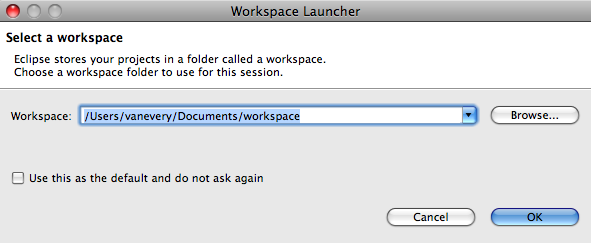
Yow will get prompted to “Select a workspace”. The default value is generally fine but if you want your files saved elsewhere, you can click “Browse” and select a different location.
Next you will be see a welcome screen
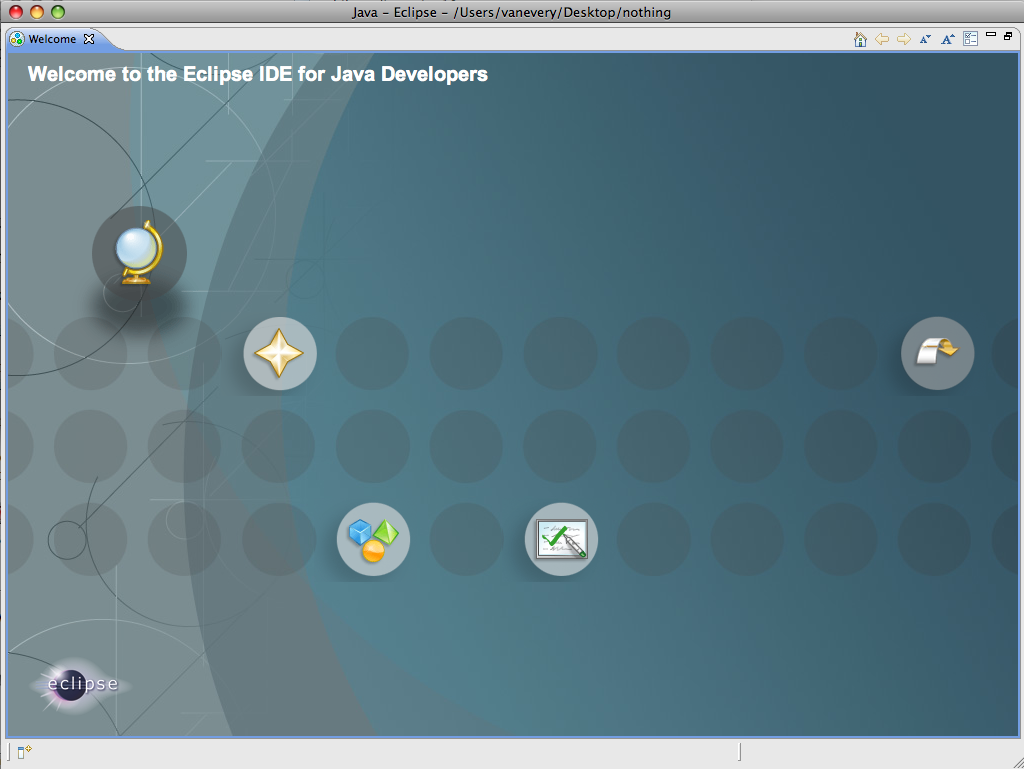
To get to the normal working environment in Eclipse, click the icon on the far right with the arrow that is pointing inwards and labelled “Workbench”.

Installing the Android Developer Tools Eclipse Plugin

Our final step is to get the plugin which enables Eclipse and the Android SDK to work well together. This is the ADT plugin (Android Developer Tools).

To install it, go to the “Help” menu in Eclipse and select “Install New Software”.
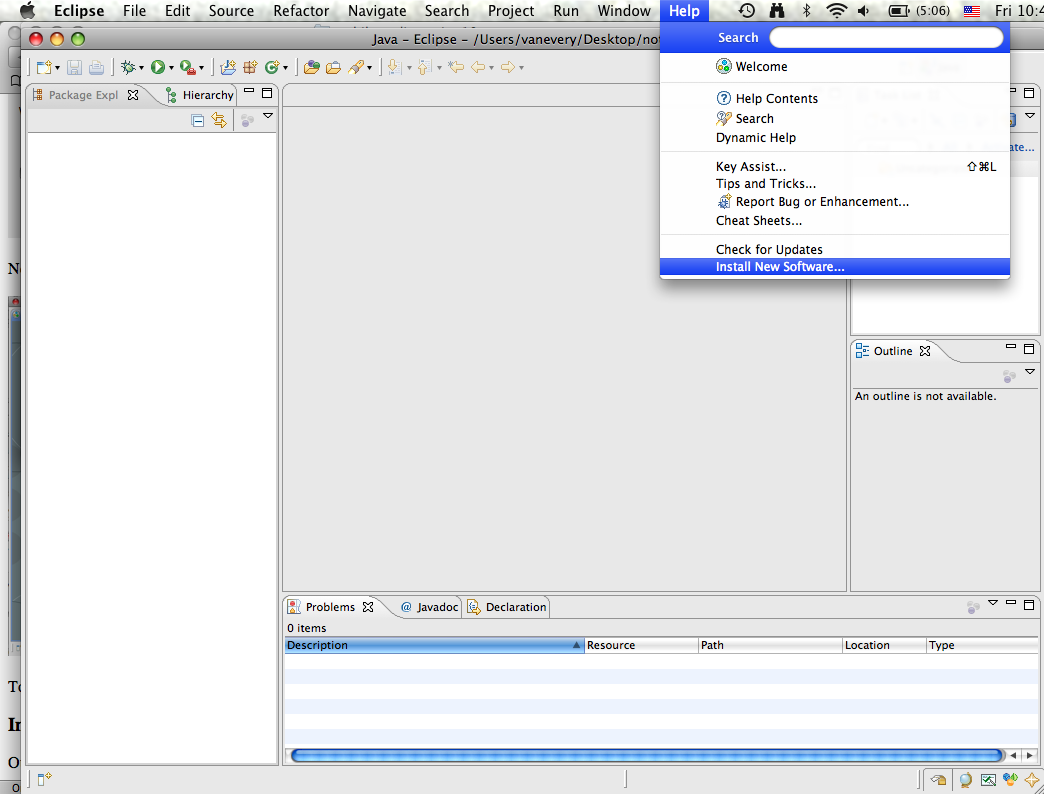
That should bring up an “Install” window.

Click the “Add” button next to the “Work with” field and enter the following:

Name: Android Developer Tools (or something like that)
Location: https://dl-ssl.google.com/android/eclipse/
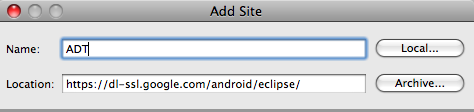
Finally Click “OK”.

You should be presented with a list of software that can be installed. You should select both “Android DDMS” and “Android Development Tools” and click “Next”.
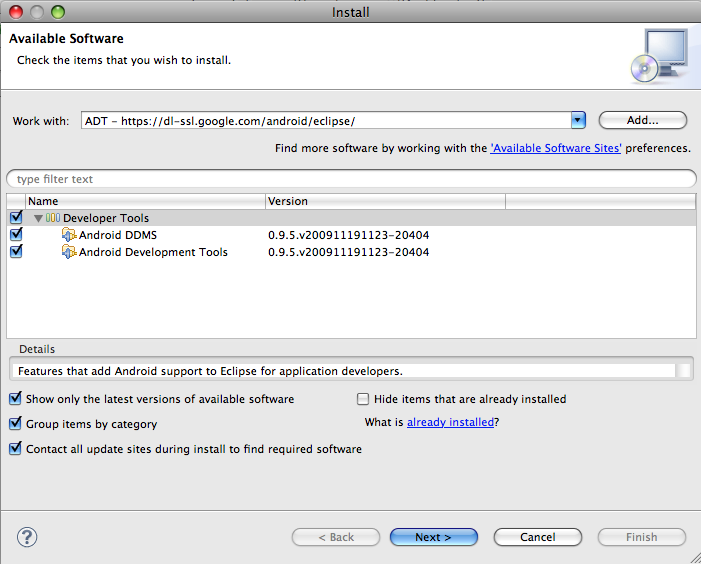
Following through the wizards and accepting the license agreements will be required.

Once it is done intalling, you should restart Eclipse.

Getting Started with Android Development

Now that we have the Android SDK and Eclipse we can jump into actual Android development.

Activity

In Android, at the very least each application (and perhaps each screen in an application) contains an Activity. In other words, this is the base class that you’ll be working with when building Android applications.

Hello World

Let’s start with the proverbial Hello World example.

In Eclipse, choose “File”, “New”, “Project”, “Android”, “Android Project”
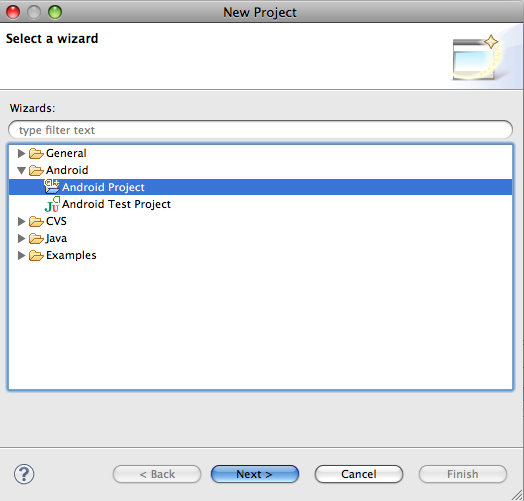
Following that, you should be given a “New Android Project” dialog:
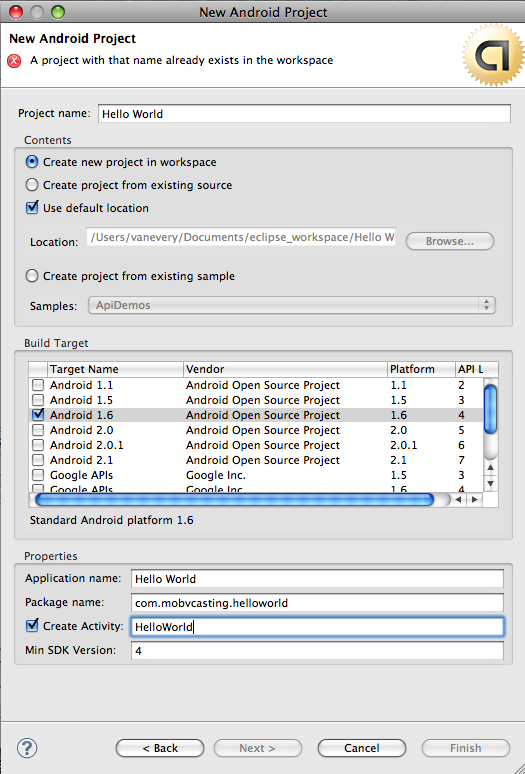
The details here are somewhat important. The “Project name” can be whatever you like it to be and will only be referenced in Eclipse. It should be “Create a new project in the workspace”.

The “Build Target” is the next important bit. It should target the platform you intend to develop for. Android is backwards compatible in the running of applications (meaning you can run something targeted for 1.5 on a handset running 2.1) but you should develop for the lowest target you intend to support. Generally that will be 2.1 as that has the greatest number of users at the moment and those with later versions will still be able to run the application.

Next up is the “Application name”. This will be the name of the application as seen on the device. “Package name” is a Java convention and generally needs to have at least two words (with periods between) and be unique (globally). The convention is that you use your domain name in reverse followed by something unique to the application itself.

Last is the “Activity”. This is the name of the initial class that will be run or the default “Activity” that will be launched.

Clicking “Finish” should bring you back to the Eclipse workspace and your project should appear in your “Package Explorer” on the left.
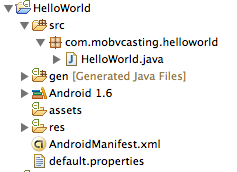
Within the project you should see a “src” directory and inside there a “.java” file for the particular Activity you created. Double click on the “.java” file to bring up the code editor.

It should contain something like the following:

package com.mobvcasting.helloworld;

import android.app.Activity;
import android.os.Bundle;

public class HelloWorld extends Activity {
    /** Called when the activity is first created. */
    @Override
    public void onCreate(Bundle savedInstanceState) {
        super.onCreate(savedInstanceState);
        setContentView(R.layout.main);
    }
}

The top line “package…” should be the package name you specified previously. The two “import” statements bring in packages from the Android SDK that are used in this Activity.

The work begins with the “public class HelloWorld extends Activity” line. That is saying that this is a class named HelloWorld and it is derived from Activity (the base class). This means that this class has all of the properties and methods of the Activity class as well as what you might add to it.

You can examine the reference for the Activity class on developer.android.com:
http://developer.android.com/reference/android/app/Activity.html

The reference page gives an overview of the class, includes a list of what it’s base classes are, and what it’s methods and properties are.

You’ll notice that in our HelloWorld class, we are “Overriding” the “onCreate” function. This is generally our starting point for any Activity based class. Generally you always want to call “super.onCreate(savedInstanceState)” first as this tells the derived classes (the “super”) to run their onCreate methods.

Following that, is the “setContentView” method call. This actually determines what will be displayed in the application. In this case, it is specifying “R.layout.main”.

R.layout.main can be found within the “gen” directory in our Eclipse project. It is auto-generated by Eclipse and not meant to be edited. We can look at it though to see what is going on.

    public static final class layout {
        public static final int main=0x7f030000;
    }

Seeing that main is an “int” within the “layout” class. Behind the scenes Android is referencing our “layout” XML and making that be what is displayed.

In Android, in most cases, the UI (user interface) of an application is written in XML.

To edit this XML, in Eclipse, go to “res”, “layout” and double click on the “main.xml” file.
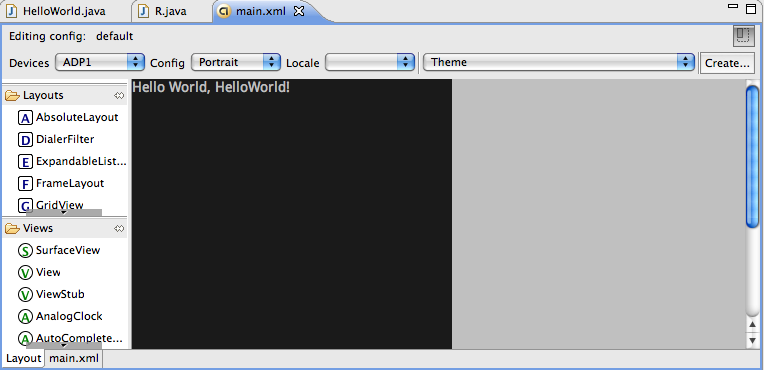
The tabs at the bottom determine your view. The default is a WYSIWYG (what you see is what you get) editor. If you click on “main.xml” you’ll see the actual XML.

<?xml version="1.0" encoding="utf-8"?>
<LinearLayout xmlns:android="http://schemas.android.com/apk/res/android"
    android:orientation="vertical"
    android:layout_width="fill_parent"
    android:layout_height="fill_parent"
    >
<TextView  
    android:layout_width="fill_parent" 
    android:layout_height="wrap_content" 
    android:text="@string/hello"
    />
</LinearLayout>

As you can see, there is a “TextView” inside of a “Linear Layout”. The “text” of the TextView is specified as “@string/hello”. This means that Android will be referencing an additional file that specifies the various strings used in the application.

To change what this says, we need to edit that file and change the “hello” string. That file “strings.xml” is inside the “values” folder under “res” in your Eclipse project.

You can edit the value for “hello” by highlighting it, changing the “Value” and then saving it.
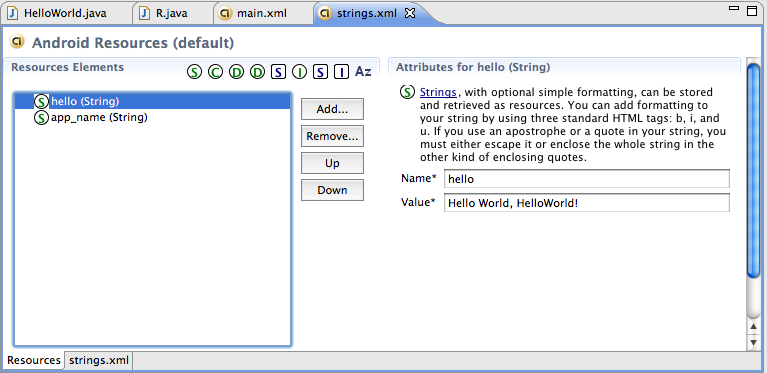
Once you have done that, it is time to test out the application on the Android Emulator.

Click on “Run Configurations” under the “Run” menu, create a new configuration for this project (highlight Android Application on the left and click the paper with the plus symbol) and save it (clicking Apply).
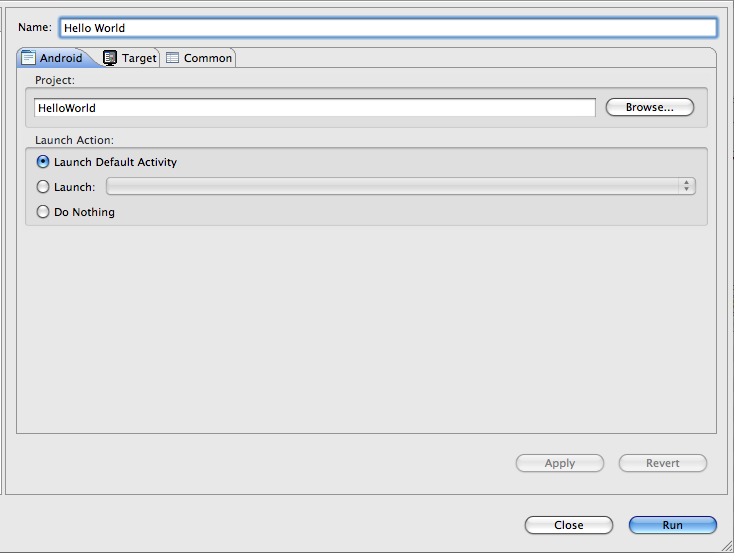
Following that, click “Run” and your Emulator should launch and display your application.

(You may have to hit “Menu” on the emulator to get past the locked screen).

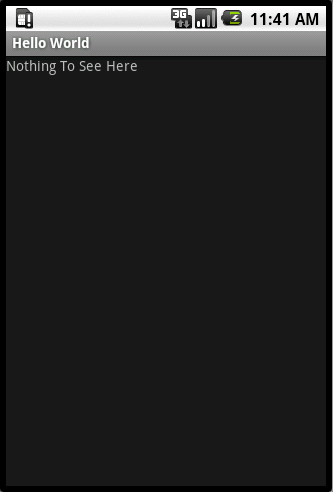
It should look something like this (the text should be what ever you filled in):
User Interface

As you see from the Hello World example, you can build user interfaces for Android in XML or with the WYSIWYG GUI editor in Eclipse.

Let’s add a button to the Hello World example.

The first step is to go back to the “res”, “layout”, main.xml file and open it up. In the WYSIWYG editor on the left, highlight “Button” under “Views” and drag it onto the screen.
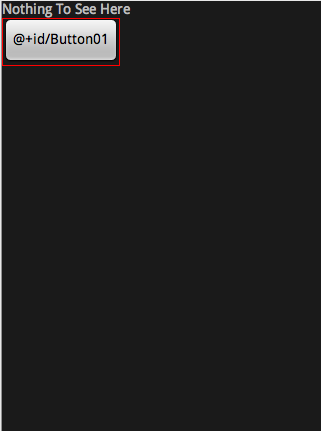
The properties of this button can be edited in the “Properties” pane at the bottom of the screen. One thing to keep in mind is that it’s “id” is “Button01″. You can change this or leave it as is but remember what you have it set to be.

Let’s change it’s “Text” in the “Properties” pane:

The default value is what you see on the button: “@+id/Button01″ which is simply there to help you know what it’s “id” is. You can edit the value directly and change it to whatever you like OR you can put a new string into the “strings.xml” file and refer to it with this syntax: @string/stringname (stringname would be whatever you called the string in the strings.xml file).

Now that we have a button in our application, we have to make this button do something. In order to do that, we need to actually start writing some code so we have to start editing our .java file. Double click your “HelloWorld.java” file and add in the following code after the “super.onCreate” and the “setContentView” methods:

Button aButton = (Button) this.findViewById(R.id.Button01);

Substitute whatever you set for the “id” of the button in place of “Button01″ in the line.

You should notice that “Button” is underlined in red by Eclipse. This means that their is a problem. The problem is probably that Eclipse doesn’t know about the Button class. If you click error indication on the left hand side of the editor it should give you some possibilities for fixing the error. The top one will probably be to “Import ‘Button’”. Select that and the error should probably go away. You’ll notice that an “import android.widget.Button;” line is added to your list of import statements in the top section of the code.

The statement we just added allows us to use the button in our code. Now we can tell our application what should respond to the button click itself. This is called a listener. In this case we need to make an OnClickListener.

aButton.setOnClickListener(new OnClickListener() {
   public void onClick(View v) {
     // Here is where we tell it what to do
   }
});

In addition, we have to tell our application about “OnClickListener” so we’ll need an import statement:

import android.view.View.OnClickListener;

Let’s change the text of the button when we click on it.

First step is to make our button be more global in scope. We need to declare it outside of the “onCreate” function. To do this, before the onCreate function, add this line:

Button aButton;

and inside the onCreate function change the “findViewById” line to this:

aButton = (Button) this.findViewById(R.id.Button01);

(just remove the “Button” from the beginning)

Inside the “onClick” function inside the OnClickListener add this line:

aButton.setText("You Clicked Me");

Your code should look like this:

package com.mobvcasting.helloworld;

import android.app.Activity;
import android.os.Bundle;
import android.view.View;
import android.view.View.OnClickListener;
import android.widget.Button;

public class HelloWorld extends Activity {
	
	Button aButton;
	
    /** Called when the activity is first created. */
    @Override
    public void onCreate(Bundle savedInstanceState) {
        super.onCreate(savedInstanceState);
        setContentView(R.layout.main);
        
        aButton = (Button) this.findViewById(R.id.Button01);
        aButton.setOnClickListener(new OnClickListener() {
			public void onClick(View v) {
				aButton.setText("You Clicked Me");
			}});        
    }
}

Now let’s try it in the emulator, the same way we tested the “HelloWorld” application before except we don’t need to create a new Run Configuration, we can just use the one we previously created.

Logging

Add the following import statement to your code:

import android.util.Log;

And within the onClick method add the line:

Log.v("Clicker", "Button Clicked");

To see the log messages, we need to tell Eclipse to show them to us. There is a panel in Eclipse (part of the Android Developer Tools) called LogCat. To open LogCat, select Window: Show View: Other: Android: LogCat
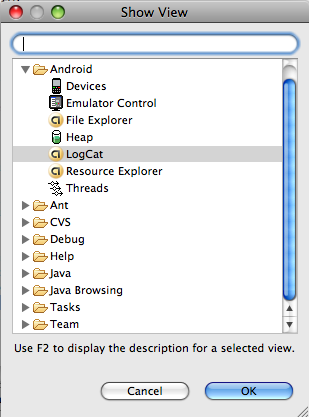
You should see a new panel open at the bottom of your Eclipse Workspace called “LogCat”. Now when you run the application, you can use the “LogCat” pane to view what is happening.

Making Toast

As proof that Android has a sense of humor there is a class called Toast which allows us to pop-up messages. Let’s make our onClick method in Hello World pop-up some toast.

We’ll need to import android.widget.Toast along with the rest of our import statements. Following that we can just use it. We use the static method “makeText” to create a new Toast view and then the “show” method to display it.

Toast t = Toast.makeText(this,"Button Clicked!",Toast.LENGTH_LONG);
t.show();

Here is our full source code:

package com.mobvcasting.helloworld;

import android.app.Activity;
import android.os.Bundle;
import android.view.View;
import android.view.View.OnClickListener;
import android.widget.Button;
import android.widget.Toast;

public class HelloWorld extends Activity {
	
	Button aButton;
	
    /** Called when the activity is first created. */
    @Override
    public void onCreate(Bundle savedInstanceState) {
        super.onCreate(savedInstanceState);
        setContentView(R.layout.main);
        
        aButton = (Button) this.findViewById(R.id.Button01);
        aButton.setOnClickListener(new OnClickListener() {
			public void onClick(View v) {
				aButton.setText("You Clicked Me");
		    	
				Toast t = Toast.makeText(this,"Button Clicked!",Toast.LENGTH_LONG);
    				t.show();

			}});        
    }
}

Another Activity

One important thing in Android is the ability to switch between screens. The easiest way to do so is create another Activity that will display something different.

To create a new activity, choose “File”, “New Class”. You should get a New Java Class dialog box.
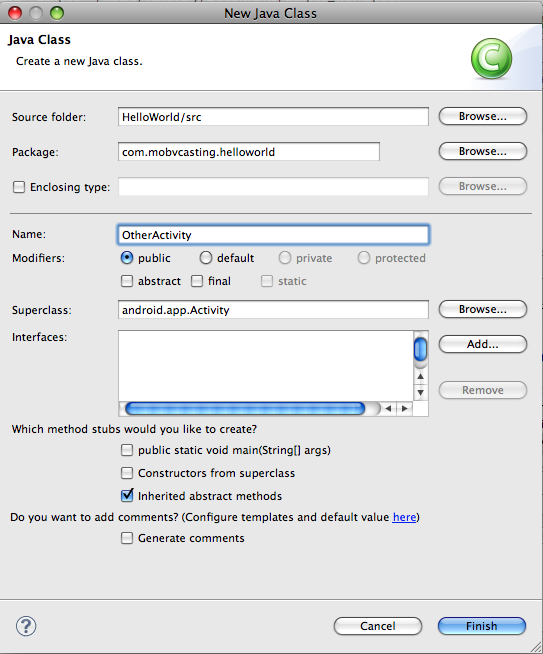
Make sure that it goes into the right project and the right directory: Project Name/src

Make sure the package name is the same as your Hello World package.

Give it a name (CamelCase is standard) and make sure it’s super class is android.app.Activity.

Click Finish.

You’ll then want to edit the file and add in some of the default Android methods:

    /** Called when the activity is first created. */
    @Override
    public void onCreate(Bundle savedInstanceState) {
        super.onCreate(savedInstanceState);
        setContentView(R.layout.other);
    }

In the end, your class should look something like this:

package com.mobvcasting.helloworld;

import android.app.Activity;
import android.os.Bundle;

public class OtherActivity extends Activity {
    
    /** Called when the activity is first created. */
    @Override
    public void onCreate(Bundle savedInstanceState) {
        super.onCreate(savedInstanceState);
        setContentView(R.layout.other);
    }
	
}

You’ll notice that R.layout.other is underlined. This means that Eclipse can’t find it so we need to create a new layout for this activity.

Go to “File”, “New”, “Android XML File”. Choose your Project, Name it: “other.xml”, make it “Layout” and click Finish:
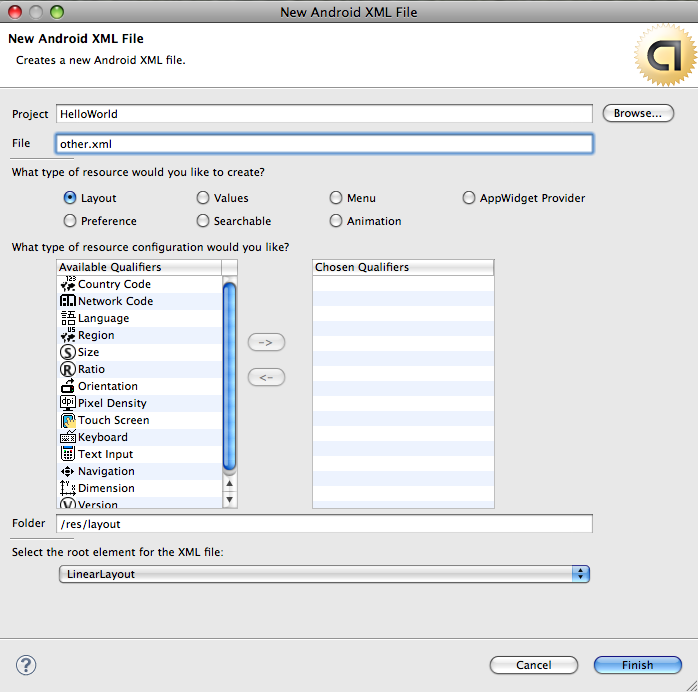
The new layout window should open in Android. Add something to it, perhaps a TextView.

Now you should be able to write code that allows the application to switch to your new view when the button is pressed.

To do this, you need to use something called an Intent.
http://developer.android.com/reference/android/content/Intent.html

In order for your activity to launch based upon an Intent, we need to tell Android about it. To do so, we need to edit the AndroidManifest.xml file that is part of our project.

Within the XML, adding the following line:

<activity android:name=".OtherActivity"></activity>

Between the tags should do it (assuming you named the class “OtherActivity”).

Now you should be able to add code to the onClick method of your first Activity:

Intent i = new Intent(HelloWorld.this, OtherActivity.class);
startActivity(i);	

Now when you run your application and click on the button it should show the “OtherActivity”.

User Interface: Android Developers: http://developer.android.com/guide/topics/ui/index.html

Getting Data from another Activity

Use “startActivityForResult” passing in a constant for identifying the activity that is returning data later.

Intent i = new Intent(this, OtherActivity.class);
startActivityForResult(i, OTHER_ACTIVITY);

OTHER_ACTIVITY is an int constant defined elsewhere in the code:

public static final int OTHER_ACTIVITY = 0;

You could just as easily pass in the 0 in place of OTHER_ACTIVITY.

Intent i = new Intent(this, OtherActivity.class);
startActivityForResult(i, 0);

Previous to “finish()” in the OtherActivity Activity we can create an Intent with extra data to pass back to the original activity:

Bundle bundle = new Bundle();
bundle.putString("A Key", "A Value");
Intent mIntent = new Intent();
mIntent.putExtras(bundle);
setResult(RESULT_OK, mIntent);
finish();						

In the original activity, the extra data can be pulled out as follows (in the onActivityResult method)

    @Override
    protected void onActivityResult(int requestCode, int resultCode, Intent intent) 
    {       		
		super.onActivityResult(requestCode, resultCode, intent);
		Bundle extras = intent.getExtras();
		
		switch(requestCode) 
		{
			// Could be case 0: or case OTHER_ACTIVITY: if we defined OTHER_ACTIVITY previously
			case OTHER_ACTIVITY:
				if (resultCode == RESULT_OK)
				{
					String theData = extras.getString("A Key");
				}
			break;
		}        
    }

Passing Data to New Activity

If instead we wanted to pass data to a new Activity that we are starting up, we can create a Bundle of extras that is passed with the Intent.

Intent i = new Intent(HelloWorld.this, OtherActivity.class);
Bundle bundle = new Bundle();
bundle.putString("A Key", "A Value");
i.putExtras(bundle);
startActivity(i);

The new Activity can get the data out by accessing the Intent

Intent i = getIntent();
Bundle bundle = i.getExtras();
String value = extras.getString("A Key");

Any number of extras can be included in the Bundle.

Midterm Presentations

In class on Monday, you will each be presenting your midterm projects. We’ll have approximately 10 minutes per presentation (15 minutes with questions).

Please make sure you cover on each of the following items:

1: Introduce self – who

In this portion you could describe who you are and that could possibly lead into the concept or problem you are trying to solve.

2: Introduce concept or problem – why

If you are building an app to solve a problem for yourself or in general please describe that problem.

If you are building something that improves on previous solutions, explain why what you are doing is better. Tell us about the other solutions and where they fail.

It is fine to have done this for fun or for personal reasons but you still need to explain why.

3: Introduce your work – what

What did you make?

How you solved the problem

How is this better/different than what is already out there 

4: Explain how you did it – how

What is the process you used?  Show wireframes/Design/Code

5: Demonstration

6: What works, what doesn’t work, where are you going to go with this?